Allocate and return workspace credits
On this page
Company credits and workspace budgets are distinct balances. Use Available to allocate to decide what you can move; a workspace's Reported remaining value is its latest report.
Before you begin#
Who can do this: an Owner or Billing user. The company needs available credits and a listed workspace. Check credit expiry and the destination before allocating.
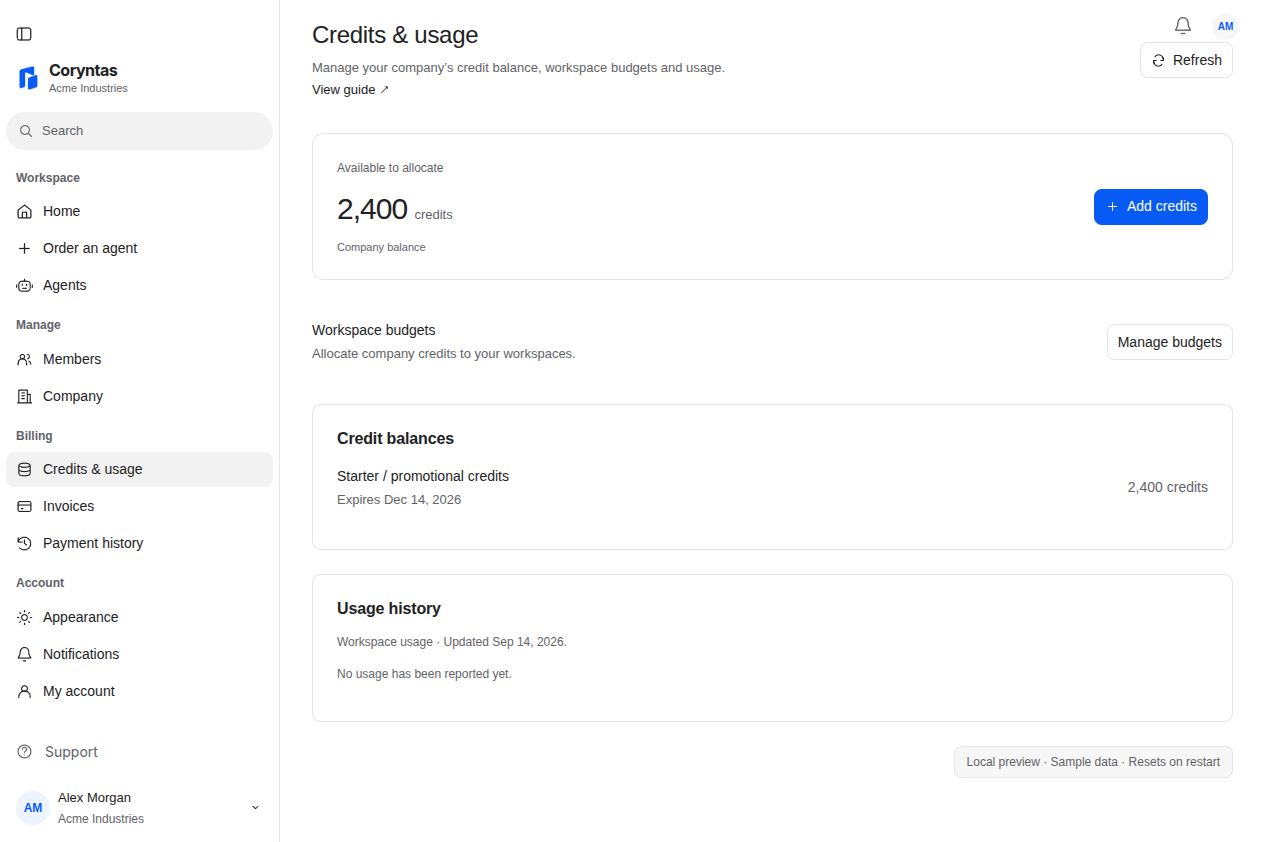
Allocate a workspace budget#
- Open Billing and view Credits & usage.
- Choose Manage budgets.
- Check Available to allocate, select Workspace, and enter Credits to allocate.
- Choose Review and check the destination and amount.
- Choose Confirm allocation.
- Review the allocation and its workspace synchronization status.
You should see: the allocation recorded for the selected workspace. Pending workspace sync means confirmation has not completed; do not submit a duplicate allocation to force it through.
Request the return of unused credits#
- In Manage budgets, find the workspace under Allocated to workspaces.
- Choose its return action when available.
- Review Request return of unused credits and the selected workspace.
- Choose Request return.
- Wait for the workspace to confirm the returned amount before allocating those credits again.
You should see: a pending return followed by a confirmed result when synchronization completes. The return depends on the workspace's current unused balance; continued usage can affect it. This moves credits back to company availability and is not a cash refund.
If balances or requests look wrong#
Refresh the page and check the latest workspace report and request status. Reported remaining is not automatically spendable in the company account. Credits must still satisfy their validity and expiry rules after a return.
If insufficient credits are available, review existing allocations and credit expiry or use Add credits. Purchased credits are issued after payment is received and verified.
For a stalled synchronization or unexpected amount, contact Support with the workspace name and visible status. Recheck existing requests before resubmitting after a network error.
Related guides#
Last updated on