Get started with the Coryntas app
On this page
Use the Coryntas app to request agents, follow delivery, manage your company, and handle billing and support. Start with the company you want to work in, then follow the next action shown for your agent or invoice.
First visit? You need a Coryntas account and access to a company. If a colleague invited you, use the invitation email to join their company before starting a new organization.
Before you begin: A signed-in, verified account and an active company membership. Owner, Billing, and Member see the pages permitted by their role.
Sign in and choose your company#
- Sign in to Coryntas with your work account.
- Complete email verification or company setup if prompted. For an invitation, follow Join a company.
- Check the company name below the Coryntas logo. Use the company selector if you belong to more than one company.
- Open Home to see the work that needs your attention.
You should see: your selected company and the navigation allowed by your role. An empty agent list can mean that your company has not ordered an agent yet, or that no agent has been delivered to a Member account.
Find your way around#
| Page | Use it to | Access |
|---|---|---|
| Home | Review next steps, agent progress, and outstanding invoices. | All roles; content follows your permissions. |
| Agents | Follow requests and open delivered agents. | Owners and Billing see requests; Members see delivered agents. |
| Support | Send a request and follow the conversation. | Available from the app and the public support page. |
| Company | Manage company, contact, and billing details. | Owner or Billing to edit. |
| Members | Invite colleagues and manage their company roles. | Owner. |
| Credits & usage, Invoices, Payment history | Manage budgets, payment documents, and verified payments. | Owner or Billing. |
| My account, Appearance, Notifications | Manage personal security and preferences. | All roles. |
On a small screen, open the navigation menu to find these pages. Navigation search filters the available page names; use the search inside Agents or Invoices to find records.
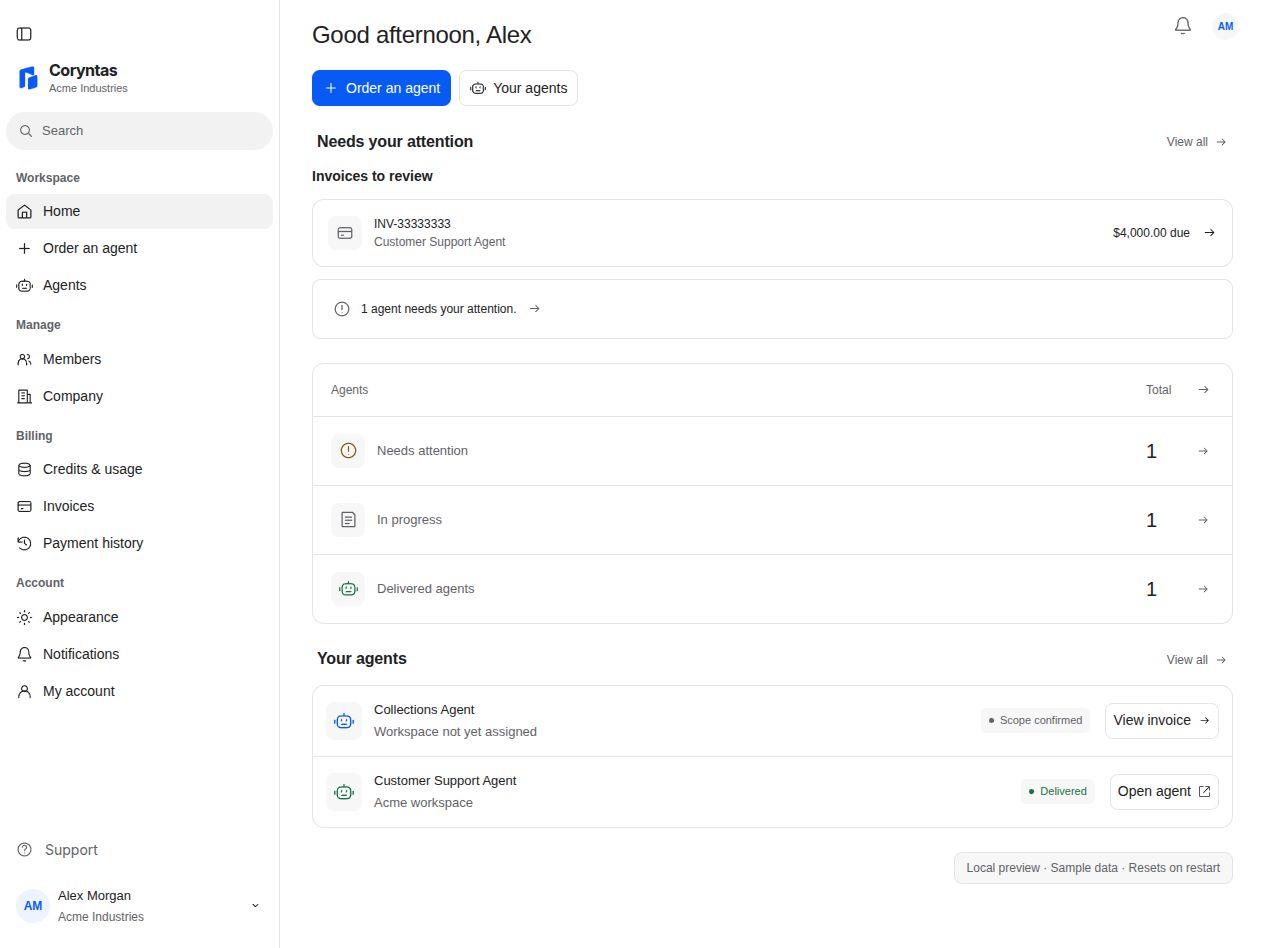
Complete your first task#
Choose the path that matches your role:
- Owner setting up a company: check company details, invite colleagues, then request an agent.
- Billing managing a purchase: review invoices and payments and manage credits and workspace budgets.
- Member ready to use an agent: open Agents, select a delivered agent, and choose Open agent or Open workspace. Follow Track and open agents.
The app manages your requests, access, and company administration. Your agent workspace is where you work with a delivered agent; it opens separately and may require sign-in.
Check the next action on Home#
Needs your attention brings together agent decisions and invoices you can access. Open an item to review its details before taking action. In progress and Delivered agents show the corresponding agent lists.
Payment verification, delivery, and workspace access are separate milestones. An invoice marked paid does not by itself mean that your agent has been delivered. Follow the next step on the agent detail page.
When your account has no agents or outstanding invoices, Get started offers the first available setup actions. Hide and Show control this guidance for your account and company in this browser.
Get help when something is missing#
Check the selected company and your role first. Ask the company owner if you expected access to Members or billing pages. For an expired invitation, request a fresh email rather than creating a second company.
See Support and troubleshooting for sign-in, access, payment, and workspace problems. You can also open Support.
Related guides#
Last updated on