Change, suspend, or remove member access
On this page
Manage access for the selected company from Members. Company membership is separate from the person's own account and from sharing inside a workspace.
Before you begin#
Who can do this: a company Owner. Check the selected company, member's identity, and intended access. Keep at least one active Owner.
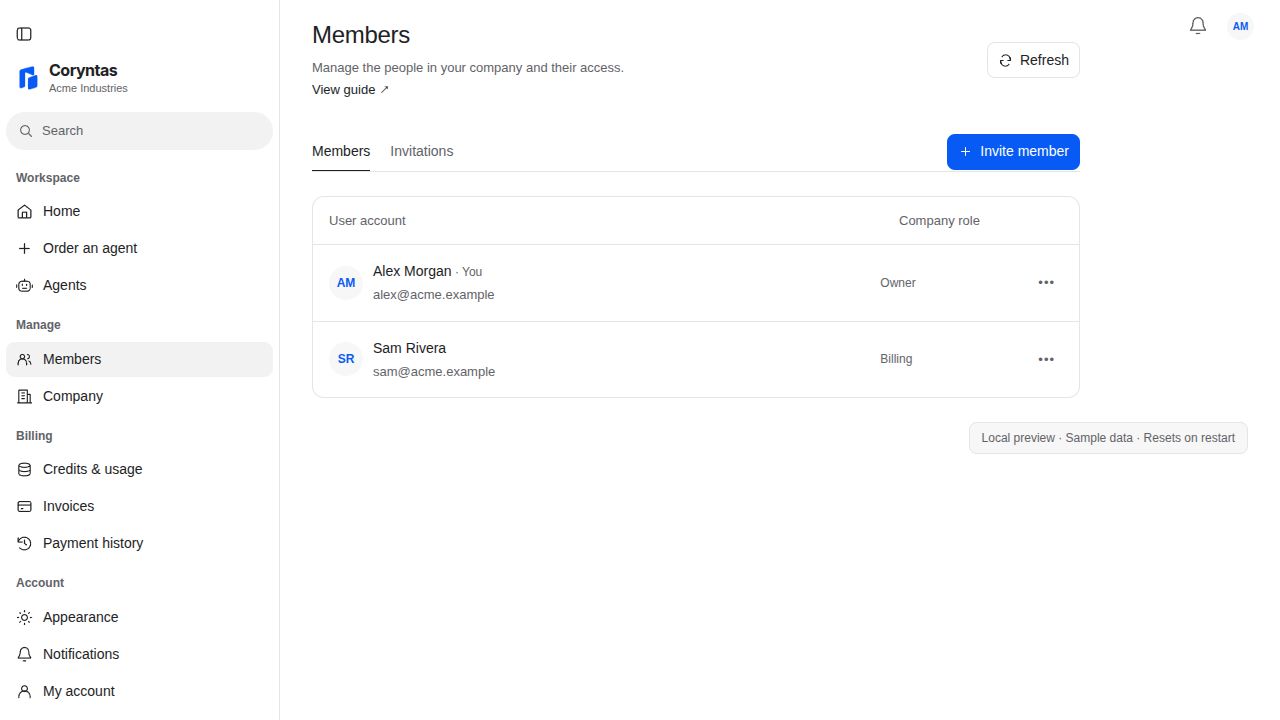
Change a company role#
- Open Members and find the person.
- Choose Change role.
- Select Owner, Billing, or Member and review the role description.
- Continue to Change role?, check the summary, and choose Confirm role.
You should see: the updated company role in Members. Owner manages access and accepts quotations; Owner and Billing can manage invoices, credits, and company details. Members can access their company view and delivered agents.
Suspend or restore access#
Choose Suspend access beside the person and confirm in Suspend access?. Suspension retains the membership record while disabling company access. To re-enable it, choose Restore access and confirm.
You should see: Suspended beside the role after suspension; after restoration, the membership is active again. Company roles sync to connected workspaces, while agent and document sharing are managed in each workspace.
Remove company access#
Choose Remove access, review the affected member, and confirm Remove access. This removes the company membership rather than deleting the person's personal account. Returning later requires an appropriate invitation or access review.
If an access change is blocked#
The final active Owner cannot be demoted, suspended, or removed. Add or promote another suitable Owner before changing that membership. Do not grant Owner access merely to bypass a warning.
If your own permissions changed, refresh the page and check your current role. For uncertain results after a network error, reload Members and inspect the role or status before repeating the action. Unsaved member forms are not covered by the company draft recovery feature.
Related guides#
Last updated on