Upload and resume attachments
On this page
Use attachments to provide relevant evidence for a support request. Check the file for passwords, tokens, customer information, and unrelated confidential content before uploading.
Before you begin#
Who can do this: a signed-in user with access to the request, or a guest using a valid access link for that request. Signed-in support uploads allow files up to 500 MB; guest uploads allow 5 MB. Payment evidence on an invoice has its own 3 MB limit.
You need the original local file for an interrupted upload. An upload session is available for 24 hours.
Attach a file to a reply#
- Open Support and select the request.
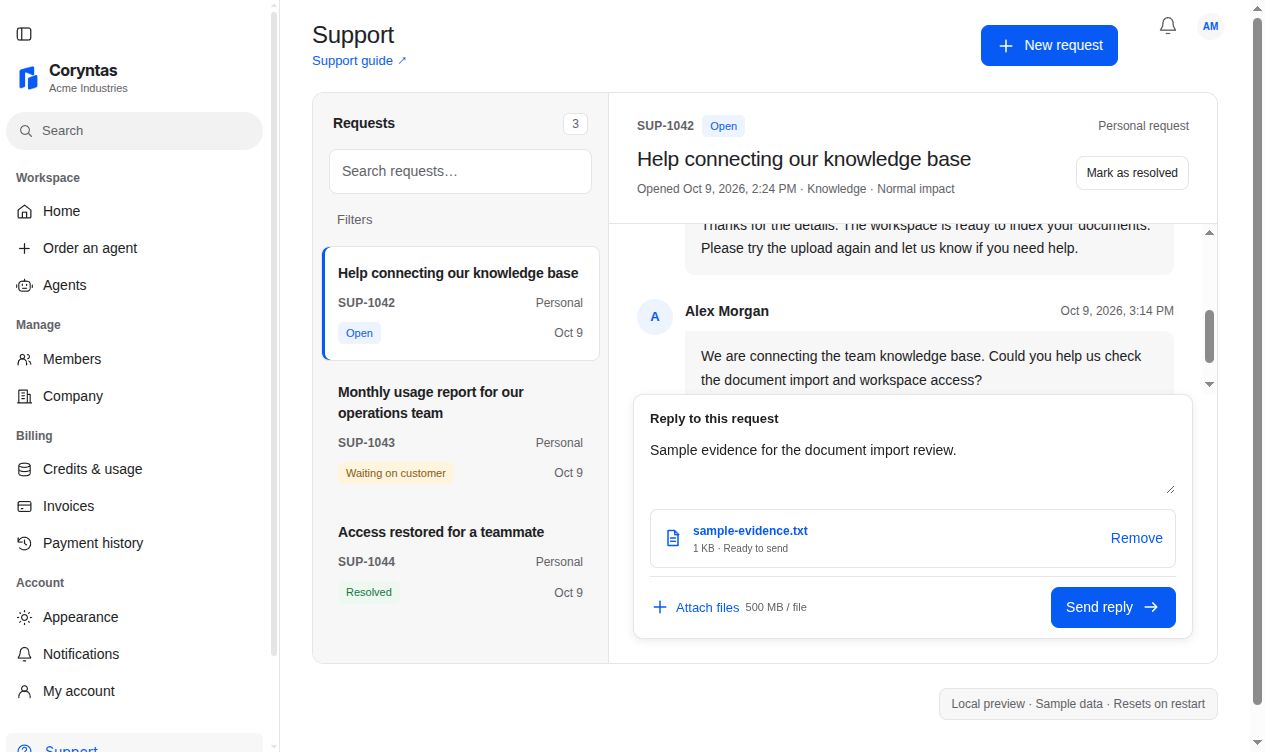
- Use the attachment control beside the reply composer and choose your file.
- Wait until the upload is ready. Review the filename and any error.
- Write the explanation the file supports and send the reply.
- Check the message and attachment in the request conversation.
You should see: the ready attachment associated with the sent message. Completing an upload and sending a reply are separate steps.
Resume an interrupted upload#
Return to the same request and use Attach files to choose the original file again. Its filename and size must match the saved upload; do not substitute a different file with similar content.
The uploader resumes the missing chunks while the session remains valid. Check that it becomes ready, then send the reply. A failed upload should be retried or removed before sending the message that depends on it.
If upload or download fails#
If the file exceeds the role's limit, reduce it or ask Support how to provide the needed evidence. If the upload session has expired, start a new upload. If a guest link is expired, recover access first.
A completed attachment download is checked against access to that request. A link may expire or a file may have reached its retention deadline; a copied download URL is not permanent public access.
Attachments are scheduled for removal 90 days after the request is closed. Reopening before removal cancels that deadline; reopening cannot restore an attachment already removed. Keep your own necessary records.
Related guides#
Last updated on